
Puzzle CAPTCHA - Build Your Own CAPTCHA
What is a CAPTCHA?
A CAPTCHA helps distinguish people from automated bots. Common types include image, SMS, email, and voice challenges. Sites use them to protect against automated abuse.
Prevent spam submissions
Adding a CAPTCHA to registration and comment forms helps block automated spam and keep the site useful for readers.
Protect privacy and account security
CAPTCHAs can help prevent automated abuse of sign-in, registration, and password recovery flows.
Why build a CAPTCHA yourself?
Many CAPTCHAs ask users to enter a string of letters and numbers and offer little room for customization. Slider, puzzle, and SMS challenges are common alternatives. I originally planned to use a third-party library, but after looking through npm and GitHub, I couldn't find one that met my needs.
- Some libraries had very few downloads.
- Some had limited visual design.
- Mature, well-designed libraries often required payment.
- Some had no documentation, even for the basic API.
- Others had an API that was difficult to integrate.
- A Vue component wouldn't work in a React project, and vice versa.
I decided to build one myself, from the UI to the backend API. It turned out to be more work than I expected, which helped me understand why some libraries charge for it. After a few days, I had a free version to share. If you need the complete source for self-hosting or additional security measures, contact me to discuss the options.
Preview the CAPTCHA
Design mockup
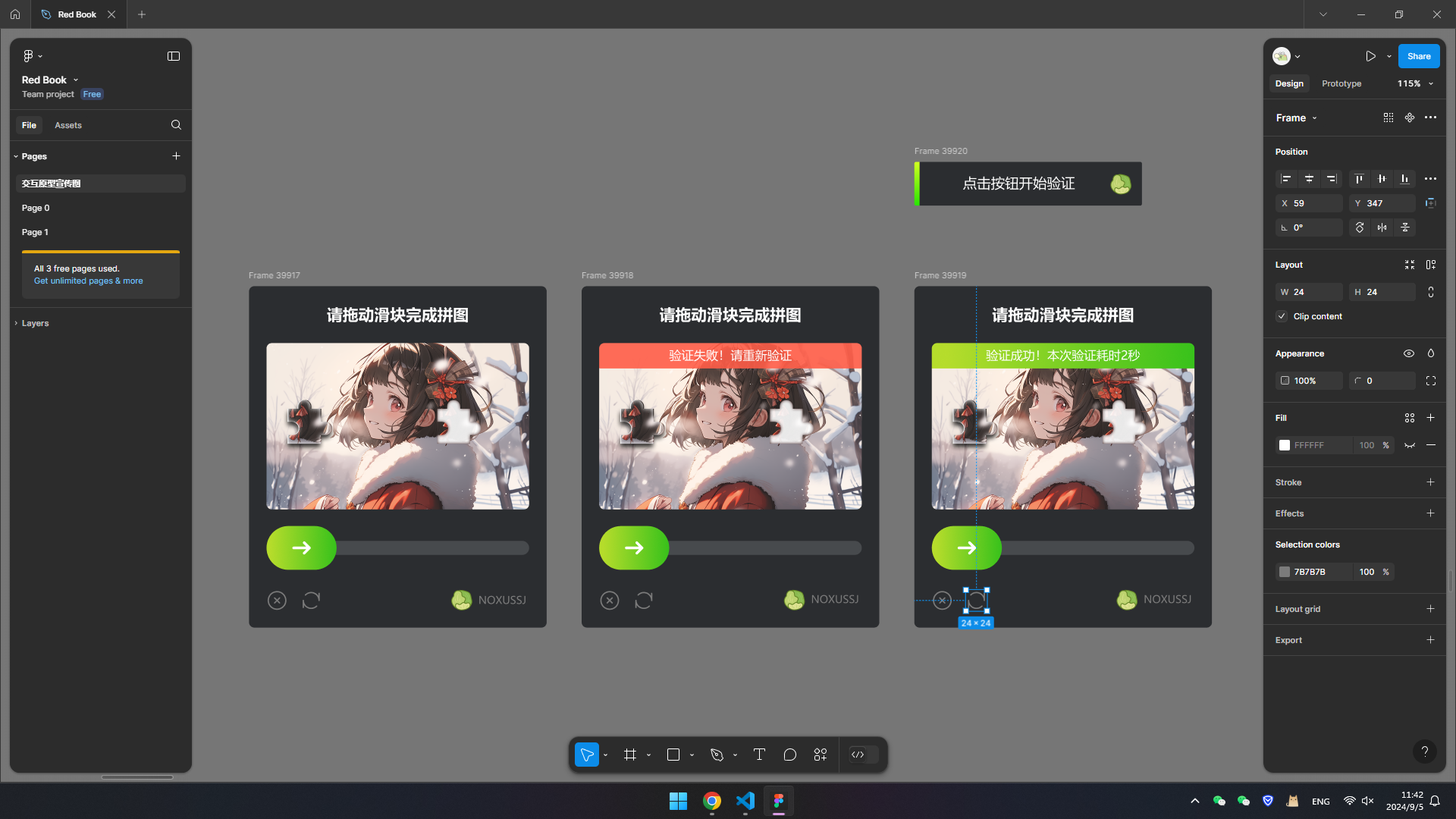
Click the button to try the live demo. The demo controls are in Chinese.
Use the free CAPTCHA
Initialize the component
Load the provided puzzle-captcha-button.js file. Keep puzzle-captcha-button.css in the same directory. You don't need to load it separately.
Add a <puzzle-captcha-button /> element to render the CAPTCHA.
<!DOCTYPE html>
<html lang="en">
    <head>
        <script src="./puzzle-captcha-button.js"></script>
    </head>
    <body>
        <puzzle-captcha-button />
    </body>
</html>
Listen for events
Use addEventListener('success') and addEventListener('fail') to handle the verification result.
<script>
    document
        .querySelector('puzzle-captcha-button')
        .addEventListener('success', () => {
            console.log('Verification succeeded')
        })

    document
        .querySelector('puzzle-captcha-button')
        .addEventListener('fail', () => {
            console.log('Verification failed')
        })
</script>
Customize styles with CSS variables (recommended)
The web component creates a shadow root with attachShadow. This keeps the page's styles from conflicting with the component's internal styles.
Use the supported CSS custom properties to customize common styles.
<style>
    puzzle-captcha-button {
        /** Verification button styles */
        --puzzle-button-width: 260px; /** Button width */
        --puzzle-button-height: 50px; /** Button height */
        --puzzle-button-fontSize: 16px; /** Button font size */
        --puzzle-button-background: #2b2d30; /** Button background */
        --puzzle-button-tag: linear-gradient(
            to bottom,
            #ceff20 0%,
            #27e500 100%
        ); /** Background of the indicator on the left */

        /** Puzzle dialog styles */
        --puzzle-popup-background: rgba(43, 45, 48, 1); /** Background */
        --puzzle-popup-title-color: #fff; /** Title color */
        --puzzle-popup-button-background: linear-gradient(
            to right,
            #b5dc2b 0%,
            #38c21b 100%
        ); /** Slider button background */
    }
</style>
Edit puzzle-captcha-button.css
CSS custom properties cover only some styles. To change other styles, edit puzzle-captcha-button.css, which defines the component's styles.
Be careful when editing this file. Some layout changes can interfere with the component's puzzle calculations and stop it from working.
Stick to changes such as colors, backgrounds, font sizes, and border radii. Avoid changing the dialog dimensions or the puzzle piece size.
Verify the CAPTCHA on the server
The example above is simple because the sign-in server doesn't participate in verification. It doesn't protect the sign-in endpoint on its own.
Client-only verification in a sign-in flow
- The user enters an account name and password in the form.
- The user clicks the CAPTCHA button. The component verifies the challenge using its built-in API.
- If verification succeeds, the client calls the sign-in endpoint with
{ account: 'xiaoming', password: '123456' }. - The user signs in.
Because the sign-in endpoint doesn't check the CAPTCHA result, this flow only protects the browser UI.
Client-only verification is suitable for a practice project.
Client and server verification
- The user enters an account name and password in the form.
- The user clicks the CAPTCHA button. The component starts the challenge without calling its built-in verification API.
- When the user releases the slider, save the drag distance
xand the puzzle image identifieruuid. - Call the sign-in endpoint with
{ account: 'xiaoming', password: '123456', x: 50, uuid: '09cb9471-896e-4b05-9b88-f7ef8e15f27b' }. - As part of sign-in, the server calls the CAIYUAN CAPTCHA endpoint
/api/v1/captchawith{ x: 50, uuid: '09cb9471-896e-4b05-9b88-f7ef8e15f27b' }. - Return the verification result to the client.
- Pass the result back through the callback assigned to
document.querySelector('puzzle-captcha-button').api. - Complete CAPTCHA verification and sign-in.
With this approach, the sign-in endpoint checks that the submitted x matches the challenge identified by the uuid, even for requests that don't come through the browser UI.
Implement the callback
Assign an api callback to integrate the component with your sign-in flow.
When you set the api method on the puzzle-captcha-button element, the component calls that method in place of its built-in verification API.
<script>
    document.querySelector('puzzle-captcha-button').api = async ({
        uuid,
        x
    }) => {
        // Mock the sign-in API
        const login = (form) =>
            new Promise((resolve) => {
                setTimeout(() => {
                    resolve({
                        code: 200,
                        message: 'Sign-in succeeded',
                        data: {
                            match: 0
                        }
                    })
                }, 1000)
            })

        // Call the sign-in API
        return login({ username: 'xiaoming', password: '123456', uuid, x })
    }
</script>
Advanced options
The free version is easy to integrate and covers basic use cases. It also has some limitations.
CAPTCHA service availability
CAIYUAN hosts the CAPTCHA endpoint and can't guarantee constant uptime. If the service is down, puzzle images won't load and verification won't work. For a site that needs more control over availability, consider self-hosting the CAPTCHA server.
Manage your own images
CAIYUAN manages the CAPTCHA images on the server. The included images may not fit your site's needs.
Customize the layout
The component's styling and layout are largely fixed, which limits how much you can rearrange or customize it.
To address these limitations, you can obtain the full frontend and backend source, customize it, and deploy it yourself.